
What is new in October 2026: a whole new account
7 November 2026
Quick summary
- Your account has a new look: a grouped menu, a Recents list and a menu you can arrange the way you work
- Creator Studio is a design tool inside your account. Describe a post, a flyer or a short clip and the AI designs it
- Projects and tasks now live in your account too, with lists and boards linked to your contacts
- Your AI agents can start the conversation, and you can wake up old leads and past customers with an AI campaign
- Emails and whole sequences get built from one idea, with a spam check before you send
- Quizzes, booking QR codes, digital business cards and booking from your client portal help customers say yes faster
- Calls write themselves up, review replies get guardrails, and the mobile app gets a new dialler
October was the biggest month of updates we have ever had. Hundreds of changes landed in a few weeks, from a new look for the whole account to a design studio, project boards and agents that follow up on their own. Most of what is new in revenu this month is built for the jobs you do every day: winning the lead, booking it in, doing the work and getting paid.
I have gone through all of it and pulled out what matters for your business. Here is what each update is, what it does for you, and where to find it.
The big one · Your accountA new look for your whole account
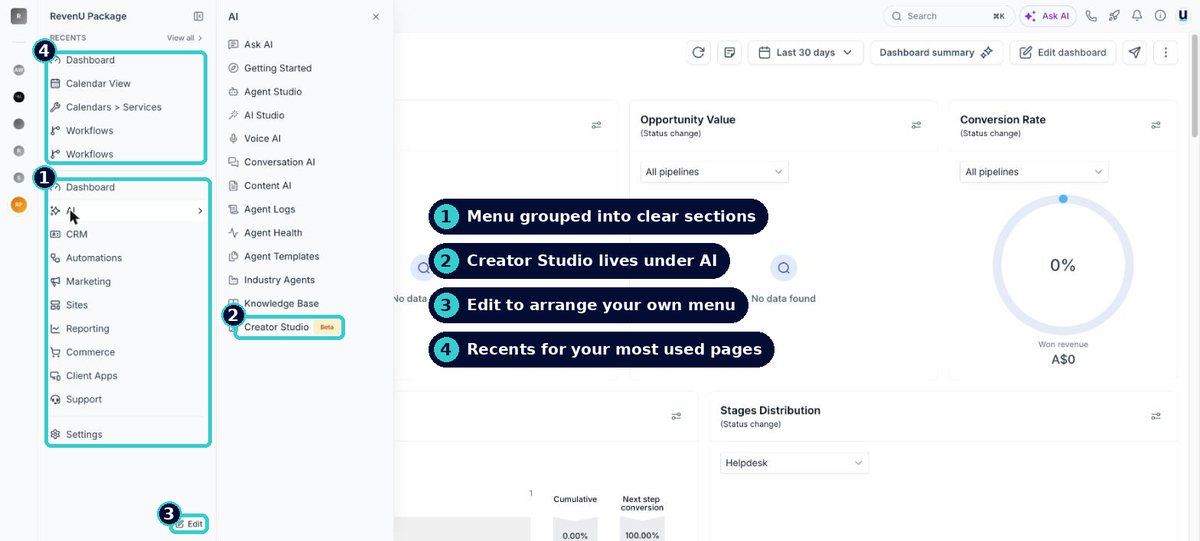
The first thing you will notice when you log in is the menu. Everything is now grouped into clear sections, so the tools that belong together sit together. There is a Recents list at the top with the pages you use most, and a search that finds any page, contact or tool from one box.
You can make the menu your own. Pin your favourites, reorder them, and tuck away the tools you never touch. Hiding something only tidies your menu, it does not switch anything off, so you can always find it again through search. Settings and switching between accounts now live in the menu as well.
What it means for you: less hunting, more doing. Your account shows the five tools you actually use, front and centre.
Where to find it: it is there when you log in. Use the Edit button at the bottom of the menu to pin, reorder or hide items.
The big one · Projects and tasksRun every job and project inside your account
Most businesses we work with keep their jobs somewhere else. A whiteboard in the shed, a spreadsheet, a notebook, or a separate task app that never quite talks to the customer record. That gap is where things get missed: the part that was never ordered, the follow-up nobody owned, the handover that slipped a week.
Project management now lives inside your account. You organise work in three simple layers. A space for each area of your business (Bathroom renos, New clients, Treatment plans). Lists inside it for each job or project (Smith family bathroom). And tasks inside each list, with subtasks when a step has its own steps. Each task has a status, a due date, a priority, an owner and notes.
See it your way. The list view shows every task with its status and due date in one table. The board view lays the same tasks out in columns, To do, In progress, Blocked and Complete, so you can see at a glance where every job is up to and what is stuck. Filter by who it is assigned to, by status or by due date.
The real difference from a separate app is that every task can be linked to the customer it belongs to. The bathroom job sits next to the Smiths. The onboarding checklist sits next to the new client. And your automations can work with it: add a task when a deposit is paid, remind the owner when it is due, and kick off the next step the moment a task is marked done. You can also keep a space private and share it only with the people who need it.
What it means for you: every job, who owns each step and what is due this week, in the same place as your customers. Nothing falls through the gap between two apps, and you can see what is stuck before the customer has to ask.
Where to find it: CRM, then Tasks. Click the plus next to Spaces to create your first space, then add a list for each job. Use the two icons at the top right to switch between list and board view.
The big one · DesignMake social posts, flyers and short videos with AI
Creator Studio is a design tool built into your account. Describe what you need, like "a summer special post for my salon, bright and clean", or start from a ready-made template. The AI designs it, and you refine it by chatting ("make the headline bigger", "use our teal") or by editing it by hand.
You can make social posts, ads, flyers and graphics, and short video clips for reels and stories. Because it sits inside your account, your designs are right there when you plan your social posts or build an email. For a lot of businesses it means one less design subscription to pay for.
What it means for you: a week of social content in the time it takes to have a coffee, in your brand, without opening another app.
Where to find it: Creator Studio, under AI in your menu. Each design session uses a small amount of AI credit from your wallet.
New · AI agentsLet your AI agent follow up leads for you
Until now your chat agent waited for someone to message first. Now it can start the conversation. When a form comes in, a call is missed or a deal moves stage, your agent can reach out, ask the right questions and follow up on its own until the person replies or books.
There is a new way to wake up the contacts you already have, too. Pick a group, like enquiries that never booked, customers you have not seen in a year or quotes that went quiet, and start an AI campaign. Your agent reaches out to each person, has a real conversation and books the ones who are ready. You can send it all at once, schedule it, or drip it out over a few days.
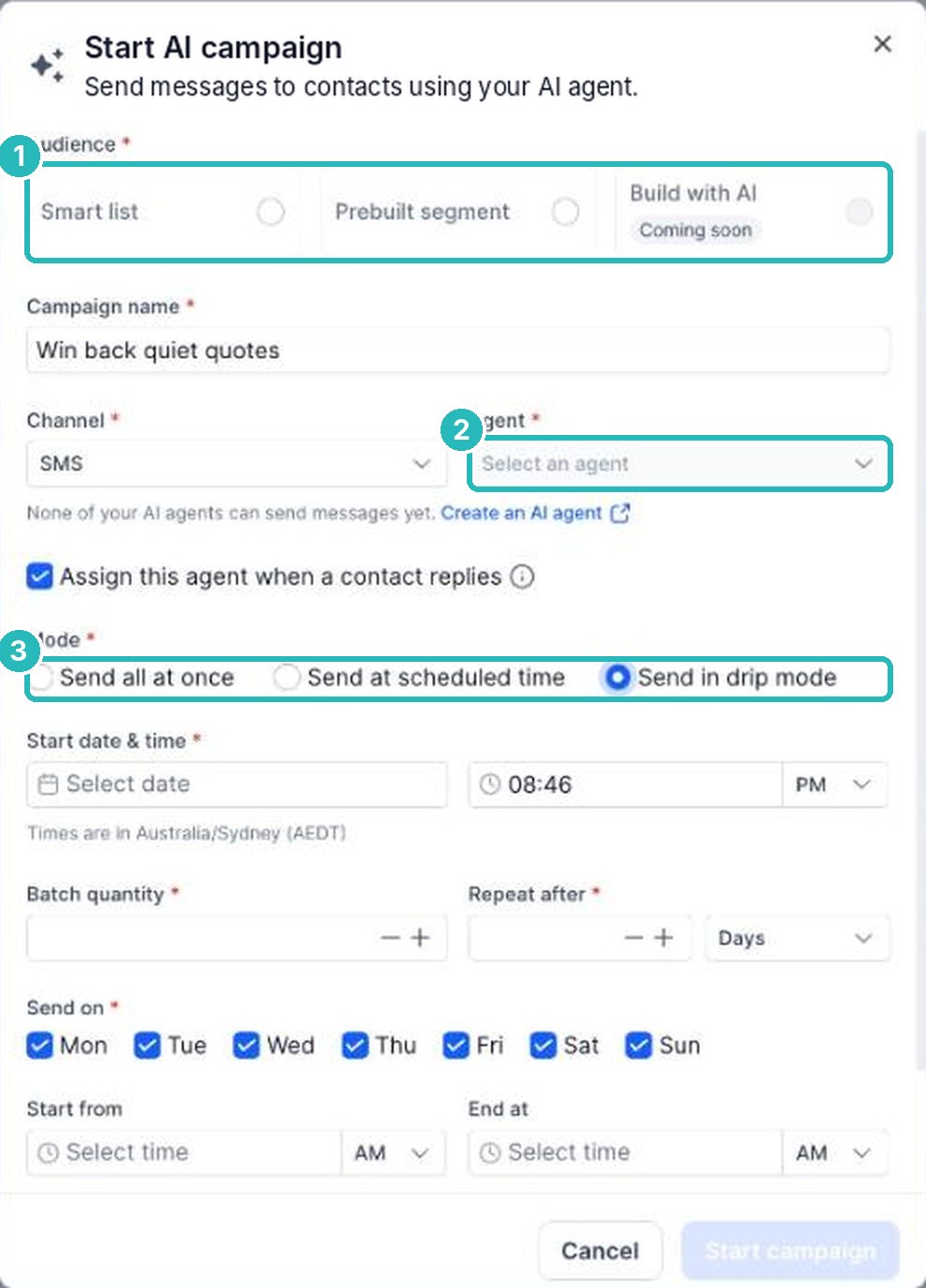
What it means for you: the money sitting in your old contacts gets a second chance, without you sending a single message.
Where to find it: CRM, then Contacts, then the AI campaign button at the top right. Your agent needs to be set up to send messages first. To let an agent start conversations from a form or a missed call, open the agent under AI and look for the deploy options.
Improved · Chat agentsChat agents with buttons, quick replies and a better sense of time
Your chat agents got a lot smarter about booking. They now understand "tomorrow", "next Tuesday" and "after school", handle daylight saving, respect your business hours, and will not offer a time that has passed or is already taken.
On WhatsApp, Facebook, Instagram and your website chat, an agent can now show buttons, quick replies, lists and images instead of making people type. Tap "Book a consult" or pick a service from a list, and the answer goes straight into the right field on the contact. You can also map out how a conversation should go with a visual flow, with branches and handoffs to your team, or just describe it and let AI draft the flow.
What it means for you: fewer people drop off halfway through a chat, and the bookings that come in are the right ones.
Where to find it: AI in your menu, then open your chat agent.
New · PhoneAnswer WhatsApp calls with your team or your phone agent
Plenty of customers would rather tap call in WhatsApp than dial a number. You can now take those calls in your account. Send them to your team, to your AI phone agent, or to your team first with the agent picking up if nobody answers.
Your phone agents are also easier to look after. Changes are saved as versions, so you can try something new and roll back if it does not work, and a health view flags calls that went off track with suggested fixes.
What it means for you: one more way for customers to reach you, and it never goes to voicemail.
Where to find it: Settings, then WhatsApp, for calling. Your phone agents are under AI in your menu.
New · EmailBuild an email or a whole sequence from one idea
Describe the email you want in plain words and you get a complete designed email in your brand colours and logo. Want a welcome series or a follow-up run? Say what you want to achieve, answer a few quick questions, and it builds every step, the timing and an email for each one. Change anything by chatting, like "make it shorter" or "add a booking button".
Before you send, a new spam check looks at your sending setup and your content and tells you exactly what to fix, with how serious each issue is. You can also preview how the email looks in the inbox and on a phone, switch templates without starting again, and set up an A/B test that sends the winner to the rest of your list.
What it means for you: no more blank screen, and more of your emails land in the inbox instead of spam.
Where to find it: Marketing, then Emails. Use the AI option in the email builder for one email, or Email sequences, then Create with AI, for a series.
New · Websites and funnelsAdd a quiz to your website or funnel
Quizzes are now built into your website and funnel builder, so there is no outside tool or embed code to wrangle. "Which treatment suits your skin?", "What size system does your home need?", "Are you ready to sell?". People enjoy answering them, and you learn exactly what they want before you talk.
You can send people to different pages based on their answers or their score. Someone who is ready to buy goes straight to booking, and someone who is just looking goes to a helpful guide. Every answer lands on the contact, so your follow-up can be specific.
What it means for you: better leads, sorted for you, and a reason for visitors to stay on your site.
Where to find it: open any page in your website or funnel builder and add the Quiz element.
New · AutomationsSee how all your automations connect, on a map
Ever changed one thing and wondered what else it touches? Workflow Maps draws your automations, along with the tags, forms, calendars and pipelines they use, as one connected map. Filter it to published or draft, or focus on one tag or pipeline, and spot the old automations you can tidy up.
Automations also got an A/B test step. Split people down up to ten paths, try a different message or timing on each, and let the system pick the winner.
What it means for you: change your automations with confidence, and let the numbers tell you which follow-up works.
Where to find it: Automations, then Workflows, then Workflow Maps next to the page title. The A/B test is an action inside any workflow.
New · Client portalLet customers book from your client portal
If your customers log in to your client portal, they can now see your services, pick a time and book without you sending a link. Their details are filled in, and they can reschedule or cancel within the rules you already set on your calendar. Meetings and service bookings sit together under Appointments, split into Upcoming and Past.
What it means for you: regulars rebook themselves, and you only show the services you choose.
Where to find it: two steps. Calendars, then Services, then Booking Pages: open a page and tick Allow booking from client portal. Then Memberships, then Client Portal, then Settings, then App Permissions: switch on Appointments.
New · Bookings and sellingSell products on an appointment, and use your own appointment statuses
The hair product after the cut, the cream after the facial, the part fitted on the call-out. You can now add retail products to a service appointment, when you book it or later, with one total for the visit and stock tracked as you sell. Change the price for one appointment, for a loyalty discount say, and your catalogue price stays as it was.
You can also create your own appointment statuses, like Arrived, In the chair or Paid, so your calendar shows what is really happening in the room.
What it means for you: one visit, one total, one payment, and a calendar that matches how your day actually runs.
Where to find it: open any appointment and look for the products section. Statuses are in Calendars, then Calendar Settings, then Preferences.
New · Phone callsCalls that write themselves up
Every call ends with homework: write the notes, update the contact, log the outcome. Now that happens straight after each recorded call. Open the call and you see what the caller wanted, what was agreed and what happens next. Names and emails mentioned on the call are ready for you to check and save, and the outcome is already picked from your own list.
What it means for you: when someone rings back, whoever answers reads the summary first, and the customer never has to repeat themselves.
Where to find it: open a recorded call in the conversation or on the contact.
Improved · ReviewsReply to reviews with AI, safely
Your AI review replies now follow a brand voice you set, with guardrails on what they can and cannot say. Sensitive reviews, like a one star with a complaint, can wait for you to approve the reply before it goes out, and you see a live preview of the reply as you adjust the settings.
Your reviews dashboard has new widgets too, showing requests sent, sentiment and how quickly you respond. And review request emails now show the sender name, so customers know who is asking.
What it means for you: every review gets a reply, and you stay in control of the tricky ones.
Where to find it: your reviews settings, under the AI reply options.
New · QR codesBooking QR codes and a digital business card
Every calendar, service and rental now gets its own booking QR code, ready to print on a counter card, a flyer, a van or an invoice. Scan, book, done, and you can see how often each code is scanned. Codes can be set to work once or to expire, and they pick up your brand colours.
Your digital business card has been redesigned as well. People can save your details to their phone in one tap, or swap details with you through a short form that creates the contact in your account.
What it means for you: every printed thing you hand out can take a booking.
Where to find it: QR codes are in your marketing tools (search "QR" in the menu), and on each calendar or service.
Improved · Mobile appA new dialler and a voice assistant in the mobile app
The mobile app has a rebuilt dialler. Recent calls expand to show more, missed calls are easy to filter, and during a call you can add a note or a task and transfer the call to a teammate. When you hang up, you log the outcome in a tap. The app also shows who answered each call and keeps every recording.
Your assistant in the app now listens and talks back. Ask it for a quick summary of a customer before you walk in, or dictate your notes in the car. On iPhone you can put it on the Action button or a home screen widget.
What it means for you: run the business from the ute or the car park, without losing a single call or note.
Where to find it: update the revenu mobile app, then open Calls, or tap your assistant.
New · EventsSell event tickets that go into Apple and Google Wallet
Run workshops, open days, classes or information nights? You can now set up free, paid or RSVP events, in person, online or both. Tickets carry a QR code that goes straight into Apple Wallet or Google Wallet, you check people in with the mobile app, and every attendee becomes a contact you can follow up.
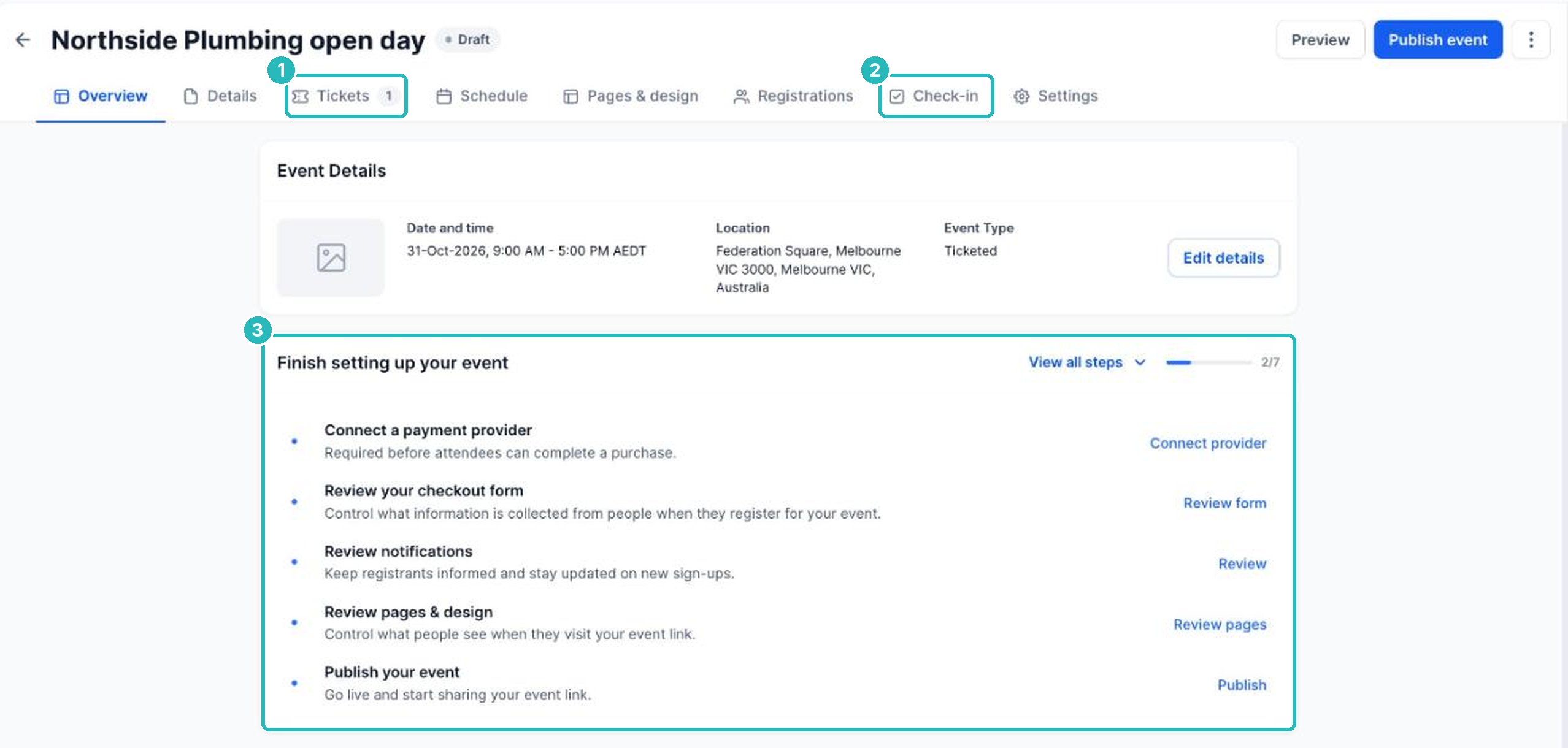
What it means for you: no more separate ticketing site taking a cut, and your attendees end up in your account.
Where to find it: Client Apps, then Events. Check-in also works from the mobile app.
Also new in October
- Redesigned order forms with one-step, two-step and split layouts, order bumps, file upload and signature fields, and billing that copies shipping in one click.
- Rentals can now add cleaning fees, optional add-ons, percentage deposits and security deposits.
- Your assistant makes documents. Ask for a PDF, Word document, spreadsheet or slides in your brand, or set a report that arrives every week.
- TikTok lead ads now send their leads straight into your account.
- Online store follow-ups when someone views a product or adds to cart and leaves without buying.
- Communities can have several price tiers, paid channels and badges that members earn.
- Your own meeting room for video calls, with recordings, transcripts and an AI summary with action items.
- Your AI-built website can now be an app, sell with its own checkout, and run live chat that matches your site.
- WhatsApp countdown offers that show a ticking deadline right in the message.
- Know which ad made the phone ring, and see the lead source even without tracking code.
- Repeating bookings, and customers can reschedule from their phone in a few taps.
- Automations can leave internal notes in a conversation and tag a teammate.
- Search inside every conversation for a word or phrase, and a resizable conversation panel.
- Your site is easier for Google to understand, with business details added site wide.
On the way
A few big ones were announced this month and are rolling out over the coming months. I will tell you the moment each one is ready in your account.
- Tools for trades and home services: requests that become quotes and then jobs, scheduling and dispatch on a map, job checklists, timesheets and a mobile app for your team in the field.
- Tools for restaurants and cafes: online ordering for pickup and delivery with no commission, table bookings, a floor plan and QR ordering at the table.
- A loyalty program with rewards, a dashboard and a QR scanner to record visits.
- Australian data hosting, so your account data can stay in Australia.
FAQs
Why does my revenu account look different?
Your account has a new menu. Tools are grouped into clear sections, there is a Recents list at the top, and you can pin, reorder or hide items with the Edit button at the bottom of the menu. Nothing has been removed, and search finds any page or tool.
Can I make social posts and videos inside revenu?
Yes. Creator Studio, under AI in your menu, designs social posts, ads, flyers, graphics and short video clips from a description or a template. You refine the design by chatting or by editing it by hand.
Can I manage projects and tasks in revenu?
Yes. Go to CRM, then Tasks. You organise work into spaces, lists and tasks with subtasks, see them as a list or a board, and link each task to a customer. Automations can create tasks and react when a task is done.
Can my AI agent follow up old leads for me?
Yes. Select a group of contacts and start an AI campaign. Your agent messages each person, has a real conversation and books the ones who are ready, all at once or spread over a few days.
How do I stop my emails going to spam?
Run the pre-send spam check in the email builder before you send. It checks your sending setup and your content, rates each issue by how serious it is, and tells you exactly what to fix.
Can I add a quiz to my website?
Yes. Add the Quiz element to any page in your website or funnel builder. You can send people to different pages based on their answers or score, and every answer is saved on the contact.
It is all waiting in your account.
Log in and have a look around the new menu first, then pick one thing from this list and give it a go this week. If you only try one, make it Creator Studio. Describe next week's post and see what comes back.
If you want a hand with any of it, the help centre has step-by-step guides, and Charlie, our AI assistant, is on charlie@revenu.com.au any time. Or book a quick chat with me.
Adam
Keep reading